
Filters and search help you find the links you need on the All Links page.
Quick Filters
The quick filters appear above the links list. Each filter includes a count, so you can see how many links match that state.
Free Filters
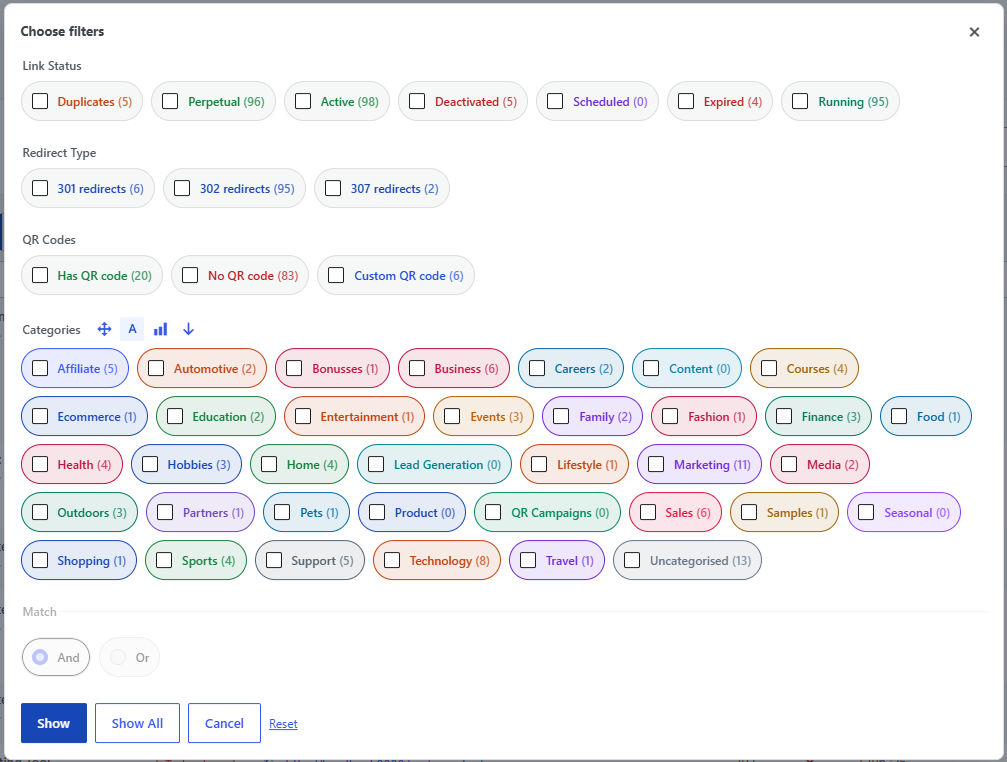
- All - Shows every link.
- Duplicates - Shows links that share the same Target URL.
- Active - Shows links that are switched on.
- Deactivated - Shows links that are switched off.
Pro Filters
- Perpetual - Shows active links with no future Start Date and no Expiry Date.
- Scheduled - Shows links with a Start Date in the future.
- Running - Shows active links that have started and have an Expiry Date in the future.
- Expired - Shows links with an Expiry Date in the past.
Colour Coding
Filter buttons and colour-coded slug badges use matching colours. This helps you identify link states quickly.
Search
The search box finds links using partial text from key fields.
Search can match:
- Slug
- Title
- Target URL
Using Filters and Search Together
Search works together with the selected filter. For example, you can choose Duplicates and then search for part of a URL to narrow the list further.
Tip
If you cannot find a link, clear the search term and switch the filter back to All.