
Advanced Link Options are available in GoshLinks Pro. They let you schedule links, expire links, and choose where inactive links should send visitors.
Where To Find Advanced Options
Create or edit a link, then open the Advanced Options accordion.
In the free plugin, this area shows an upgrade message. In Pro, it shows the advanced fields.
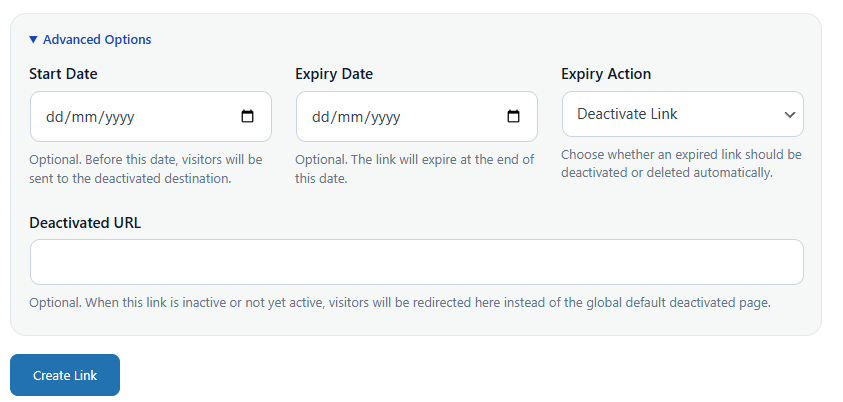
Advanced Fields
- Start Date & Time - When an active link should begin sending visitors to the Target URL.
- Before Start URL - An optional destination for visits before the start time.
- End Date & Time - When the link reaches its end state.
- After End URL - An optional destination for active links after the end time.
- Expiry Action - Whether the link should stay active, deactivate, or be deleted after the end time.
- Custom Deactivated URL - An optional per-link inactive destination.
Start Date & Time
If the Start Date & Time is in the future, the link is scheduled. Before the start time, visitors are sent to the Before Start URL if one is set. Otherwise they are sent to the Custom Deactivated URL, the global Default Deactivated Redirect Page, or the site home page.
End Date & Time
The End Date & Time controls when the link reaches its end state. If a date is saved without a time, GoshLinks uses 23:59 as the end time.
Expiry Action
- Leave Activated - Keeps the link active. If an After End URL is set, visitors are sent there after the end time; otherwise they continue to the Target URL.
- Deactivate Link - Keeps the link in your list but switches it off when someone visits after the end time.
- Delete Link - Permanently removes the link when someone visits after the end time.
Custom Deactivated URL
The Custom Deactivated URL is optional. If entered, inactive visitors are sent there instead of the global Default Deactivated Redirect Page.
Before Start URL, After End URL, and Custom Deactivated URL must be valid http or https URLs.
Editing Advanced Links
When editing a link that already has advanced values, the Advanced Options accordion opens automatically.