
Activating your licence authorises the current website and unlocks the features included with your plan.
Before You Start
Make sure both plugins are installed and active if you are using Pro:
- GoshLinks core plugin.
- GoshLinks Pro add-on plugin.
Step 1: Open the Licence Tab
- Log in to WordPress admin.
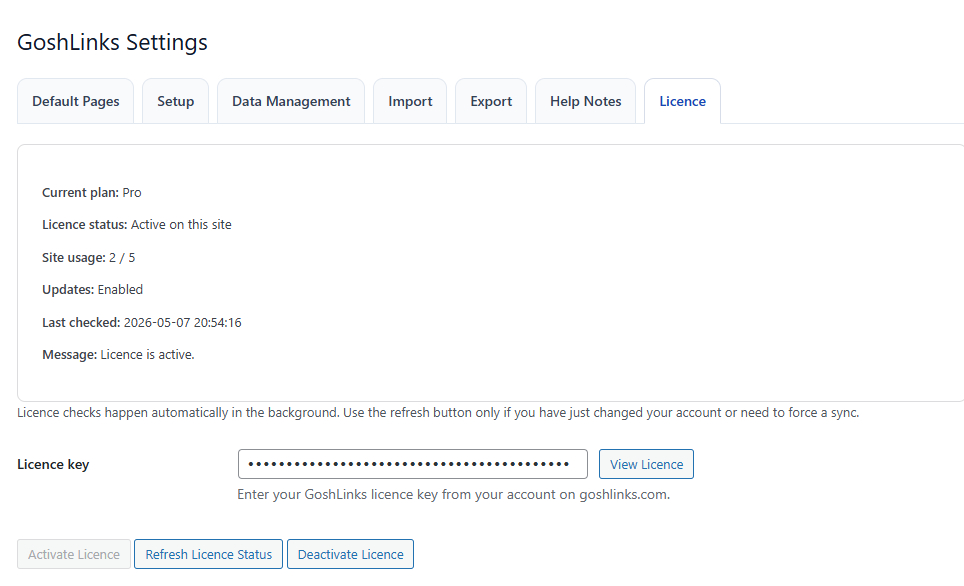
- Go to GoshLinks > Settings > Licence.
Step 2: Enter Your Licence Key
Paste your GoshLinks licence key into the Licence key field.
The field automatically converts the key to uppercase.
Step 3: Activate
Click Activate Licence.
GoshLinks sends the licence key, site URL, and site instance ID to the licence service. If the key is valid and the site can be authorised, the licence becomes active on this site.
Step 4: Confirm Status
After activation, check the Licence tab for:
- Current plan
- Licence status
- Site usage
- Updates
- Last checked
When Pro Features Unlock
Pro features are available when the licence status is active and the site is authorised for the licence.
If Activation Fails
Read the message shown on the Licence tab. Common causes include an invalid key, site limit reached, or the site already being linked to another licence.