
The Base Path is the shared path used in every GoshLinks short URL.
For example, if your Base Path is go and your slug is sale, your short URL will be:
https://example.com/go/sale
Where To Set It
- Go to GoshLinks > Settings > Setup.
- Find Base Path.
- Enter the path you want to use.
- Click Save Settings.
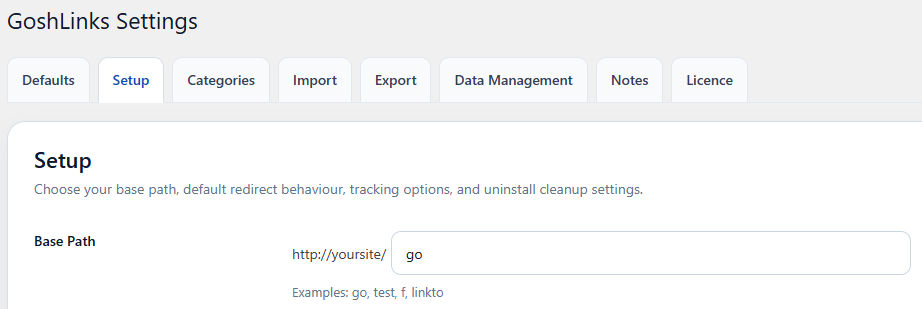
Good Base Path Examples
- go
- link
- r
- visit
Keep It Short
The Base Path appears in every short URL, so shorter is usually better.
Changing the Base Path Later
Changing the Base Path changes the public URL format of your short links.
For example, changing from go to link changes:
https://example.com/go/sale
to:
https://example.com/link/sale
Be careful if links have already been shared publicly.
If Links Stop Working After Changing the Base Path
Go to Settings > Permalinks in WordPress and click Save Changes to refresh rewrite rules.