
GoshLinks Pro can import data from a GoshLinks JSON export file.
Use this when restoring a backup, moving GoshLinks data to another site, or bringing selected export sections into an existing install.
Step 1: Open the Import Tab
- Go to GoshLinks > Settings > Import.
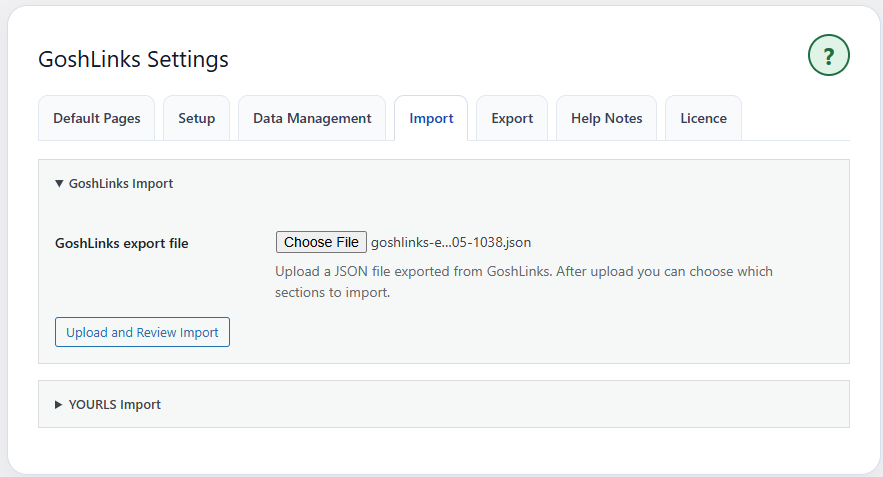
- Open the GoshLinks Import accordion.
Step 2: Upload the Export File
- Click the file selector.
- Choose a GoshLinks .json export file.
- Click Upload and Review Import.
GoshLinks uploads the file, inspects what is inside it, and shows a review screen before importing.
Step 3: Review the Import Summary
The review area shows what the file contains, such as settings, links, Stats, Link QR code customisations, and Help Notes.
Review the counts carefully before starting the import.
Step 4: Choose Import Sections
Select the sections you want to import. You can import only some parts of the file if needed.
For example, you might import links without historical activity data, or import settings without replacing existing links.
Step 5: Choose Link Import Mode
If the file contains links, choose how imported links should interact with existing links.
- Delete all existing links and their click data before importing
- Keep existing links, only import new, unique links
- Import all links and overwrite existing links that use the same slug
The safest option is usually to keep existing links and only import new, unique links.
Step 6: Choose QR Code Import Behaviour
If the file contains links, GoshLinks may show QR code options during the review step.
If the export includes link QR customisations, you can choose whether to restore those customisations and let GoshLinks recreate QR codes from the imported short links.
Generated QR image files are not imported. GoshLinks creates fresh QR codes on the new site using the imported short links and the QR option you choose.
Step 7: Start Import
Click Start Import. Large imports may run in several batches. A progress bar shows the current status.
Step 8: Review the Result
After import, GoshLinks shows a summary of what was imported, updated, or skipped.
Check All Links, Stats, QR code previews, and Settings to confirm the imported data looks correct.
Tip
Before importing into a site that already has links, run a fresh GoshLinks export first. That gives you a restore point if you choose the wrong import mode or overwrite more than intended.