
Importing a GoshLinks Backup
GoshLinks Pro can import data from a GoshLinks JSON export / backup file.
Step 1: Open the Import Tab
- Go to GoshLinks > Settings > Import.
- Open the GoshLinks Import accordion.
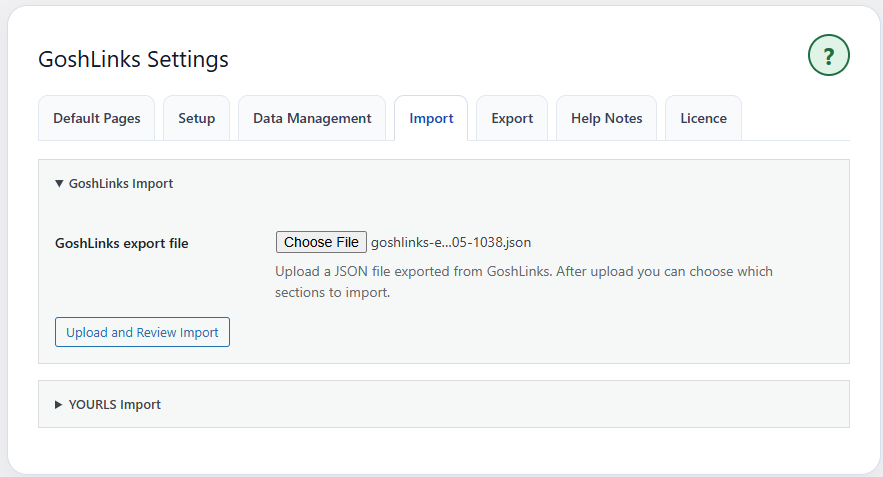
Step 2: Upload the Export File
- Click the file selector.
- Choose a GoshLinks .json export file.
- Click Upload and Review Import.
GoshLinks uploads the file and shows a review screen before importing.
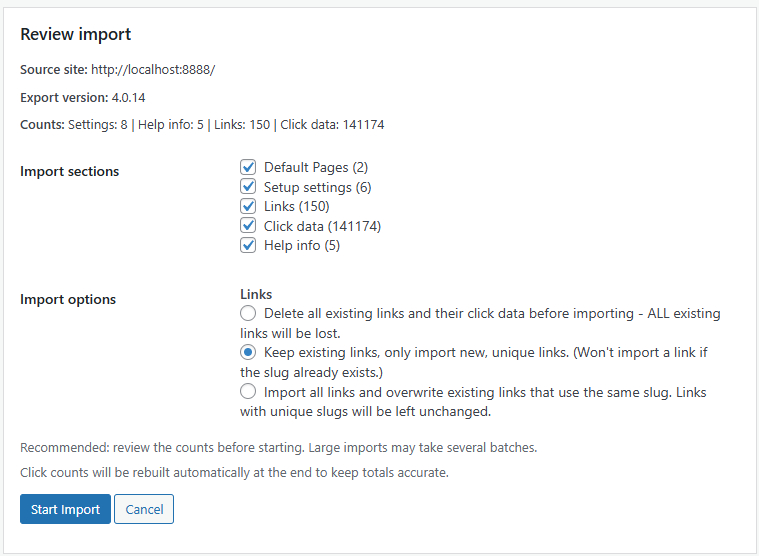
Step 3: Review the Import Summary
The review area shows what the file contains, such as settings, links, click data, and Help Notes.
Review the counts carefully before starting the import.
Step 4: Choose Import Sections
Select the sections you want to import. You can import only some parts of the file if needed.
Step 5: Choose Link Import Mode
If the file contains links, choose how imported links should interact with existing links.
- Delete all existing links and their click data before importing
- Keep existing links, only import new, unique links
- Import all links and overwrite existing links that use the same slug
Step 6: Start Import
Click Start Import. Large imports may run in several batches. A progress bar shows the current status.
Step 7: Review the Result
After import, GoshLinks shows a summary of what was imported, updated, or skipped.
Check All Links, Stats, and Settings to confirm the imported data looks correct.