
Exporting Selected Links via the Bulk Editor
GoshLinks Pro lets you export only specific links from the Bulk Editing page. This is different from the full export in Settings, which exports site-wide sections.
When To Use Selected-Link Export
- You only need to move a small group of links.
- You want to share a selected set of links.
- You want a smaller export file.
- You do not need all plugin settings or all links.
Step 1: Open Bulk Editing
Go to GoshLinks > All Links and click Activate Bulk Editing (Pro).
Step 2: Select Links
Select one or more links using the checkboxes.
If you need to choose links across multiple pages, enable Select across pages.
Step 3: Review the Selection
Use Show to review all selected links before exporting.
Step 4: Click Export
Click the Export button in the bulk action bar.
A popover asks what information to export. Links are always included. You can choose whether to include Stats.
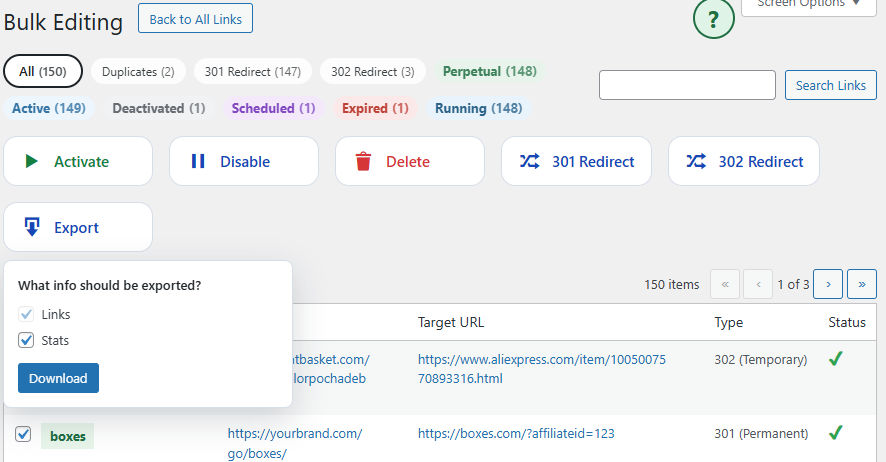
Step 5: Download
Click Download. GoshLinks downloads a JSON file containing the selected links.
Filename
Selected-link exports include selected in the filename. Where l=links and c=click stats
Example:
goshlinks-export-lc-selected-2026-05-06-1430.json