
GoshLinks Pro can export your plugin data to a JSON file. This is useful before imports, migrations, large changes, or destructive data management actions.
Where To Export
- Go to GoshLinks > Settings > Export.
- Choose the sections you want to include.
- Click Download Export.
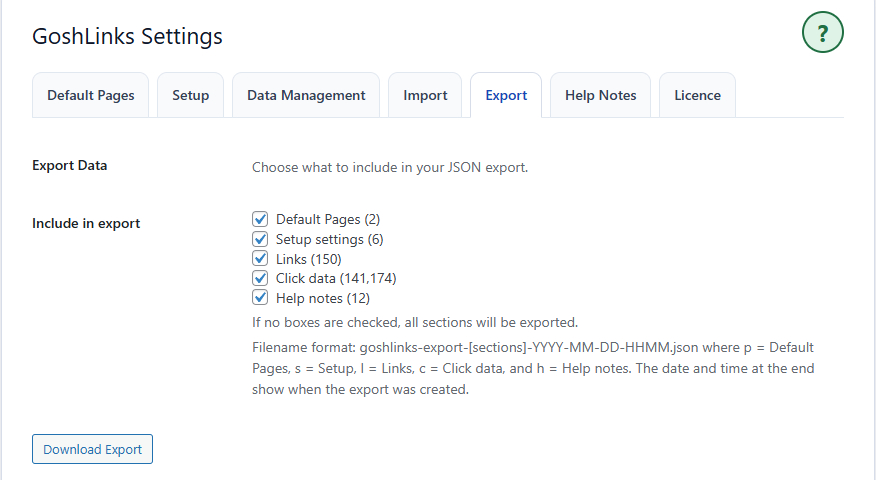
Available Export Sections
- Default Pages - Global fallback redirect page settings.
- Setup settings - Base path, default redirect type, tracking, and uninstall settings.
- Links - All short links.
- Click data - Recorded click rows used for stats.
- Help notes - Pro Help Notes saved for plugin help areas.
Full Backup Recommendation
For a complete backup, leave all export sections selected.
If no boxes are checked, GoshLinks exports all sections by default.
Click Data Can Be Large
Click data can make export files much larger. If you only need the links and settings, you can uncheck Click data.
When To Export
- Before running a large import.
- Before replacing or overwriting existing links.
- Before deleting stats using Data Management.
- Before moving GoshLinks data to another website.
- Before major site maintenance.